Channels
Quick start
Channels are short configuration recipes that typically dictate what tv should search through and what's displayed on the screen along with various other options.
Any given channel consists of a single TOML file.
Example: the default files channel
[metadata]
name = "files"
description = "A channel to select files and directories"
requirements = ["fd", "bat"]

[source]
command = [
  { name = "Default", run = "fd -t f" },
  { name = "Hidden",  run = "fd -t f -H" },
]

[preview]
command = "bat -n --color=always '{}'"
env = { BAT_THEME = "ansi" }

[keybindings]
shortcut = "f1"
f12 = "actions:edit"
ctrl-up = "actions:goto_parent_dir"

[actions.edit]
description = "Opens the selected entries with the default editor (falls back to vim)"
command = "${EDITOR:-vim} {}"
shell = "bash"
# use `mode = "fork"` if you want to return to tv afterwards
mode = "execute"

[actions.goto_parent_dir]
description = "Re-opens tv in the parent directory"
command = "tv files .."
mode = "execute"
Default location on your system
Channels live in the cable directory inside your television configuration directory.
Example:
/home/user/.config/television
├── config.toml
└── cable
    ├── files.toml
    ├── env.toml
    ├── alias.toml
    ├── git-repos.toml
    └── text.toml
Community-maintained channels
The repository hosts a list of community-maintained channels which you can get and install to your cable directory using:
tv update-channels
Invocation
Channels may be invoked:
- directly from the cli:
tv files
-
using the remote control:
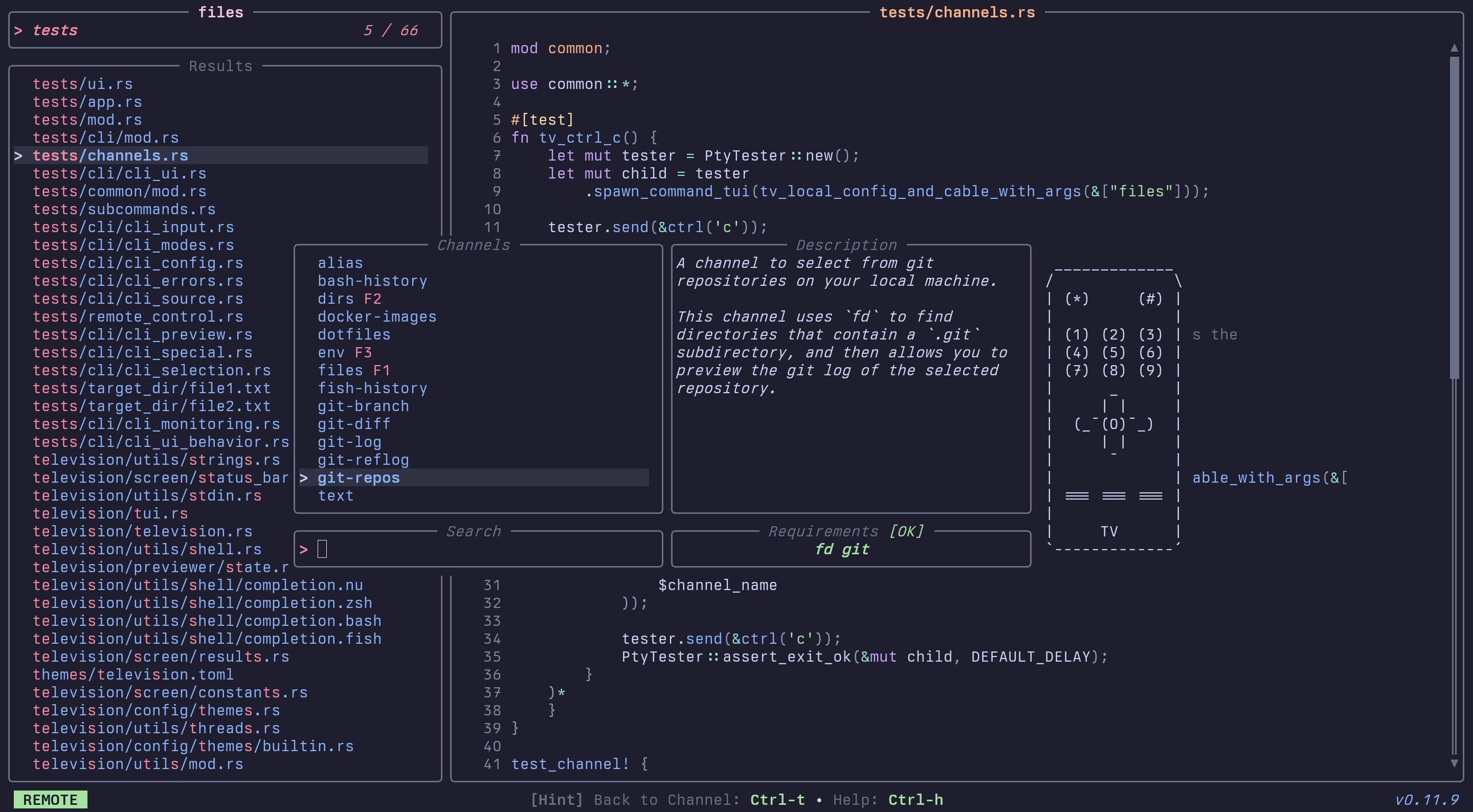
-
on the fly:
tv --source-command 'fd -t f .' --preview-command 'bat -n --color=always {}' --preview-size 70
Creating your own channels
Create a new TOML file in your cable directory:
touch ~/.config/television/cable/my-awesome-channel.toml
Fill out the minimum required fields:
[metadata]
name = "my-awesome-channel"

[source]
command = "aws s3 ls my-bucket"
Launch tv with your new channel (or select it via the remote control):
tv my-awesome-channel
The complete channel format spec can be found below and in the channel spec reference.
Channel specification
high-level sections
[metadata]
# general channel information

[source]
# this defines what we're searching through

[preview]
# for each result, maybe display a preview

[ui]
# customize the UI

[keybindings]
# customize keybindings

[actions]
# define external actions
[metadata]
[metadata]
name = "text"
description = "A short description about what my channel does"
requirements = ["rg", "bat"]  # any binary requirements my channel needs
[source]
[source]
command = "rg . --no-heading --line-number --colors 'match:fg:white' --colors 'path:fg:blue' --color=always"
# display = "[{split:\\::..2}]\t{split:\\::2}"  # what's displayed in the UI (incompatible with `ansi = true`)
output = "{strip_ansi|split:\\::..2}"
ansi = true  # whether the results are ANSI formatted
Multiple Source Commands (Source Cycling)
You can specify multiple source commands in a channel, allowing users to cycle between different search variations:
[source]
command = ["fd -t f", "fd -t f -H"]  # First shows normal files, second includes hidden files
When multiple commands are configured:
- Only the first command runs initially
- Press Ctrl+S (default keybinding for
cycle_sources) to switch between commands
Note: This feature is currently only available in channel mode (not available when using --source-command from the CLI).
Sorting Options
You can control how results are sorted using two fields in the [source] section:
[source]
command = "cat ~/.bash_history"
no_sort = true     # preserve the original order from the source command
# frecency = false   # disable frecency-based ranking for this channel
no_sort(default:false): When set totrue, disables both match-quality sorting and frecency, preserving the exact order provided by the source command. This is also available as the--no-sortCLI flag.frecency(default:true): When set tofalse, disables frecency ranking for this channel while keeping match-quality sorting. This is useful for channels where the source order is meaningful (e.g., shell history, git log). See Frecency Sorting for details on how frecency works.
[preview]
[preview]
command = 'bat -n --color=always {split:\::0}'
env = { BAT_THEME = "ansi" }  # extra envs to use when generating preview
offset = '{split:\::1}'  # extracts preview offset information from the entry
[ui]
[ui]
ui_scale = 80  # use 80% of available screen
layout = "portrait"

[ui.input_bar]
position = "bottom"
header = "Search:"

[ui.preview_panel]
size = 40  # 40%
header = "{}"  # show the currently selected entry
footer = "my awesome footer"
scrollbar = false
hidden = false

[ui.status_bar]
hidden = false

[ui.help_panel]
show_categories = true
hidden = true

[ui.remote_control]
show_channel_descriptions = true
sort_alphabetically = true
# disabled = false  # uncomment to disable remote control for this channel
[keybindings]
[keybindings]
shortcut = "f1"  # `f1` will automatically switch to this channel

quit = ["esc", "ctrl-c"]
select_next_entry = ["down", "ctrl-j"]
select_prev_entry = ["up", "ctrl-k"]
confirm_selection = "enter"
See the Actions Reference for a list of available actions.
[actions]
External actions allow you to define custom commands that can be executed on
selected entries. Actions are triggered via keybindings using the
actions:<action_name> syntax.
Action specification:
| Field | Description |
|---|---|
description | Optional description of what the action does |
command | Command template to execute (supports templating syntax) |
mode | Execution mode: fork runs command in a subprocess, allowing you to return to tv upon completion (default); execute runs command and becomes the new process |
separator | Character(s) to use when joining multiple selected entries when using complex template processing; depending on the entries content it might be beneficial to change to another one (default: " " - space) |
Example:
[actions.edit]
description = "Open selected files in editor"
command = "nvim {}"
# Single file: nvim 'file1.txt'
# Multiple files: nvim 'file1.txt' 'file2.txt'
# Files with quotes: nvim 'file\'s name.txt'
Advanced Template Processing:
For complex formatting needs, use the full templating syntax:
[keybindings]
ctrl-e = "actions:edit"
f2 = "actions:view"

[actions.edit]
description = "Open selected files in editor"
command = "nvim {split:\\n:..|map:{append:'|prepend:'}|join: }"
mode = "execute"
separator = "\n"
# example: inputs "file1" and "file 2" will generate the command
# nvim 'file1' 'file 2'
# Note: we added quotes at command level to avoid shell artifacts

[actions.view]
description = "View files with less"
command = "less {}"
mode = "fork"
separator = " "
# example: inputs "file1" and "file 2" will generate the command
# less file1 file 2
# Note: 3 args here, instead of 2
Templating syntax
Several channel fields can be formatted dynamically using the syntax described in the string-pipeline crate.
Here's a quick TLDR if you're feeling lazy:
Basic transformations:
# Extract middle items: "a,b,c,d,e"
"{split:,:1..3}"
# Output: "b,c"

# Clean and format names: "  john  , jane , bob  "
'{split:,:..|map:{trim|upper|append:!}}'
# Output: "JOHN!,JANE!,BOB!"

# Extract numbers and pad with zeros: "item1,thing22,stuff333"
'{split:,:..|map:{regex_extract:\d+|pad:3:0:left}}'
# Output: "001,022,333"
More niche use-cases:
# Filter files, format as list: "app.py,readme.md,test.py,data.json"
'{split:,:..|filter:\.py$|sort|map:{prepend:• }|join:\n}'
# Output: "• app.py\n• test.py"

# Extract domains from URLs: "https://github.com,https://google.com"
'{split:,:..|map:{regex_extract://([^/]+):1|upper}}'
# Output: "GITHUB.COM,GOOGLE.COM"

# Debug complex processing: "apple Banana cherry Date"
"{split: :..|filter:^[A-Z]|sort:desc}"
# Output: Date,Banana